
Configuring Bifrost's MCP server
Enable external MCP access, scope tools by role, and connect Bifrost to your AI client
Bifrost ships with a built-in Model Context Protocol server. Once enabled, any MCP-aware client (Claude Desktop, Copilot, Cursor, Open WebUI) can connect with a Bifrost user account and call workflows, manage forms, search knowledge, and more.
What MCP exposes
Section titled “What MCP exposes”When enabled, Bifrost exposes:
- Workflow tools — every workflow tagged
is_tool=True(or@tool) appears as an MCP tool with normalized name, e.g.lookup_customer. - System tools —
list_workflows,execute_workflow,list_forms,create_form,search_knowledge, file/code editing tools, agent CRUD, and more (~50+ built-ins). - Per-user scoping — the connecting user’s roles determine which tools they see. Non-admins without matching roles connect successfully but see an empty tool set rather than a 403.
Enable the MCP server
Section titled “Enable the MCP server”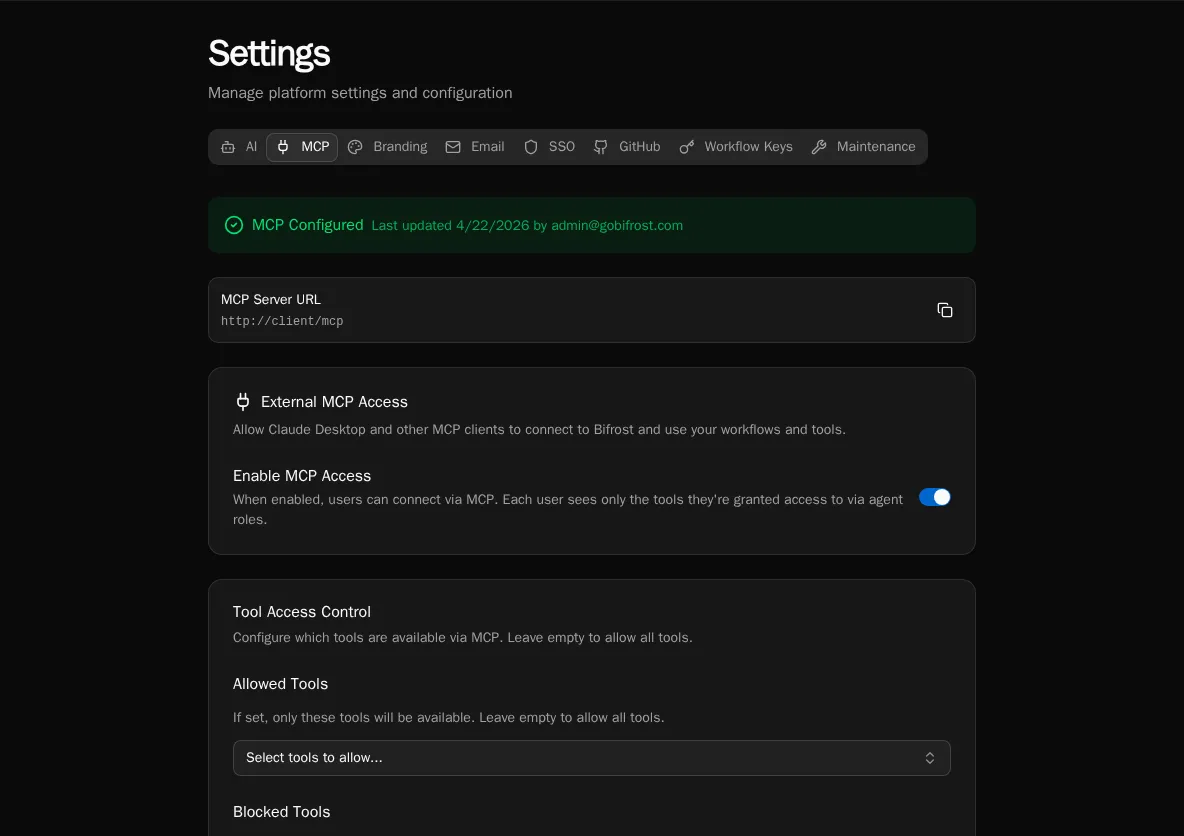
-
Go to Settings → MCP. The page shows the public MCP Server URL (
https://your-instance/mcp) and current configuration status. -
Toggle Enable MCP Access on. Per-user visibility is enforced by role; the toggle is a global kill-switch.
-
Click Save Configuration. The status banner switches to MCP Configured.
Restrict the tool surface
Section titled “Restrict the tool surface”By default, every available tool is exposed. Use Allowed Tools and Blocked Tools to narrow the surface.
-
On the Settings → MCP page, scroll to Tool Access Control.
-
Use Allowed Tools to whitelist specific tools — leave empty to allow all. Picking even one tool flips the list to allow-only mode.
-
Use Blocked Tools to subtract tools regardless of the allow list. Useful for hiding
delete_*orreplace_*operations from production. -
Save. Connected clients pick up the new surface on their next tool list refresh.
Confirm the server is reachable
Section titled “Confirm the server is reachable”-
Copy the MCP Server URL from the settings page.
-
Hit
GET <url>/.well-known/oauth-authorization-server/mcpfrom any HTTP client. You should see a JSON document advertising the OAuth endpoints (issuer, authorization_endpoint, token_endpoint). -
The discovery endpoints serve cross-origin (CORS-enabled) so browser-based clients can connect without a proxy.
How auth works
Section titled “How auth works”Bifrost implements OAuth 2.1 with PKCE (RFC 7636), dynamic client registration (RFC 7591), and discovery (RFC 8414 / 9728). When a client connects:
- The client hits
/registerwith its name + redirect URIs and gets aclient_id. - The client sends the user to
/authorize. Bifrost redirects to its login page if the user isn’t already signed in. - After login Bifrost issues an authorization code, the client exchanges it at
/tokenwith PKCE, and gets a Bifrost access token. - Subsequent MCP requests carry that token; tool visibility is filtered against the user’s roles.
Tokens expire after 30 minutes. Clients refresh transparently with the issued refresh token.
Roles and tool visibility
Section titled “Roles and tool visibility”Tool visibility is computed per request from the connecting user’s roles. To grant a user access to a workflow tool:
- Tag the workflow
is_tool=True(or@tool) and assign it to an agent. - Set the agent’s Access Level to Role-based and assign the right roles.
- Add the user to one of those roles. They will see the tool on next reconnect.
System tools (file ops, agent CRUD, etc.) follow the same role check via the agent’s system_tools allow list.