
Usage & ROI Reports
Track AI cost, token usage, CPU/memory consumption, and time-saved ROI across workflows, agents, and chat conversations.
Bifrost ships two complementary reporting surfaces:
- Usage Reports (
/usage) — what the platform actually consumed: AI tokens, AI dollars, CPU seconds, peak RSS, knowledge storage. Useful for cost conversations. - ROI Reports (
/reports/roi) — how much human time and dollar value the platform saved. Useful for value conversations.
Both surfaces are visible to platform admins for any org; org admins see only their own org’s slice.
Usage Reports
Section titled “Usage Reports”Navigate to Reports → Usage Reports, or go directly to /usage.
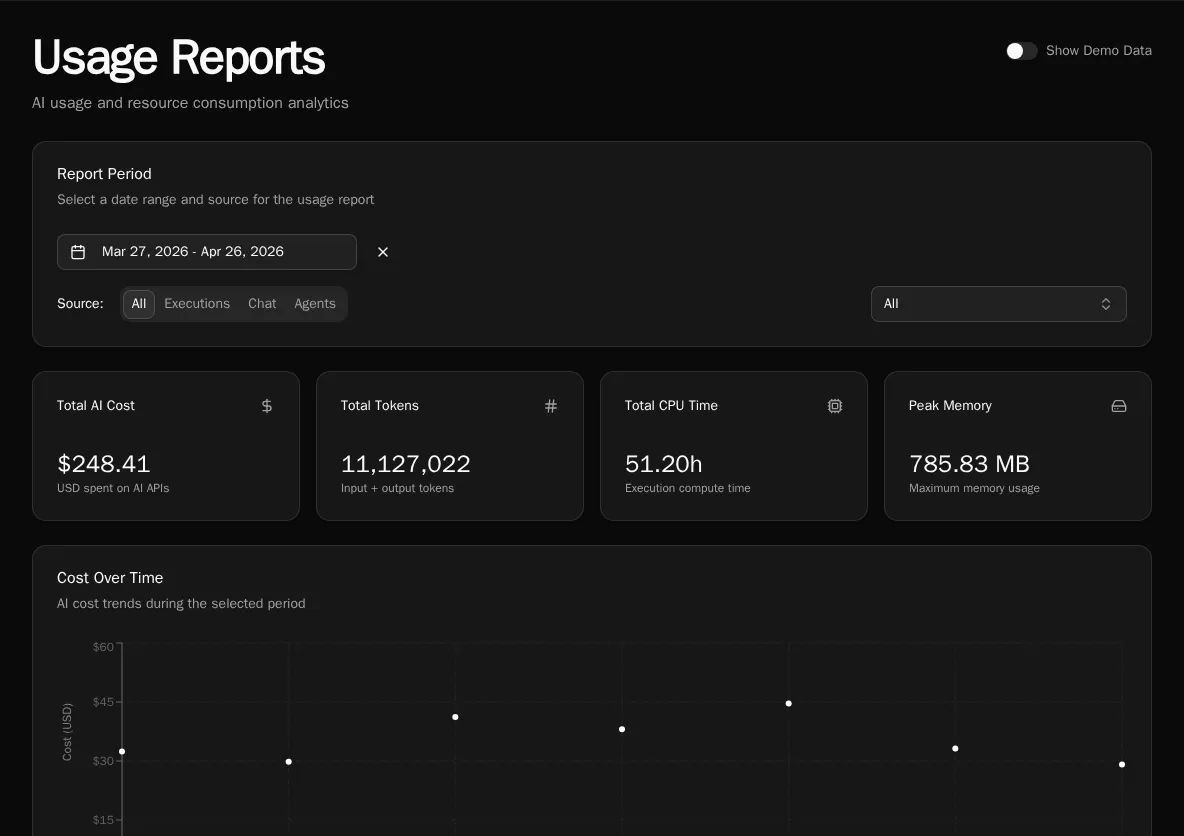
Filters
Section titled “Filters”The Report Period card at the top controls everything below it:
- Date range — defaults to last 30 days. The trends chart respects this range; the workflow / conversation / agent tables sum across it.
- Source tabs —
All,Executions,Chat,Agents. Toggling source hides irrelevant tables (e.g. Chat hides the workflow table) so you can focus on one cost driver at a time. - Organization (platform admins) — filter to a single org or look across all orgs at once. Choosing All organizations also surfaces a By Organization table at the bottom.
Summary cards
Section titled “Summary cards”Across the top: Total AI cost, Input tokens, Output tokens, AI calls, Total CPU seconds, Peak memory. The cards reflect the active filters.
Trends chart
Section titled “Trends chart”A daily line chart of AI cost and token usage across the date range. Use it to spot:
- A sudden cost spike on a single day (usually a runaway agent or a misconfigured workflow firing on every webhook)
- A weekly weekend dip (normal — the chart is in UTC, so weekend = expected)
- A gradual climb (capacity planning signal)
By-workflow / By-conversation / By-agent tables
Section titled “By-workflow / By-conversation / By-agent tables”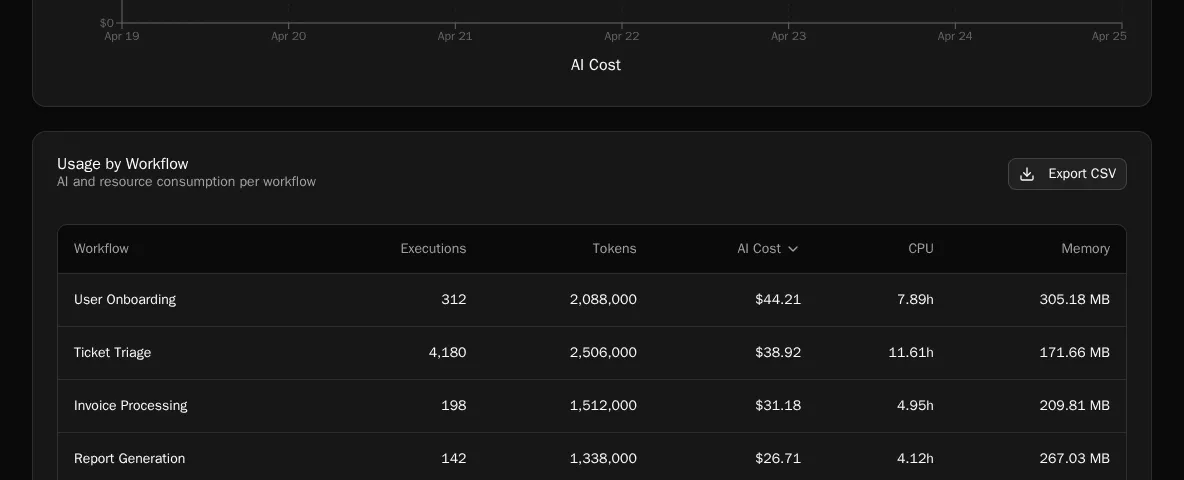
Each table sorts by AI cost descending. The AI cost column is broken out per model — you’ll see Claude Opus, Sonnet, GPT-4o, etc. listed separately for the same workflow if it called more than one provider during the date range. This makes it obvious when a workflow is paying Opus prices for a Haiku-class job.
Provider pricing is auto-synced — Bifrost periodically refreshes its model price table from a central source, so cost numbers reflect current per-token rates without operator intervention. There is no manual step to keep pricing accurate.
By-organization table
Section titled “By-organization table”Visible only when Organization is set to All organizations. Sorts orgs by their AI spend so you can identify the heavy hitters across a multi-tenant deployment.
Knowledge storage table
Section titled “Knowledge storage table”Shows S3 / vector-DB bytes consumed per knowledge collection. Useful when storage costs become a line item.
Demo Mode
Section titled “Demo Mode”Platform admins see a Show Demo Data toggle in the header. Flipping it on replaces the real data with deterministic sample data — handy for screenshots or demos when your real data is sparse or sensitive. The amber banner makes it obvious you’re in demo mode.
ROI Reports
Section titled “ROI Reports”Navigate to Reports → ROI, or go directly to /reports/roi.
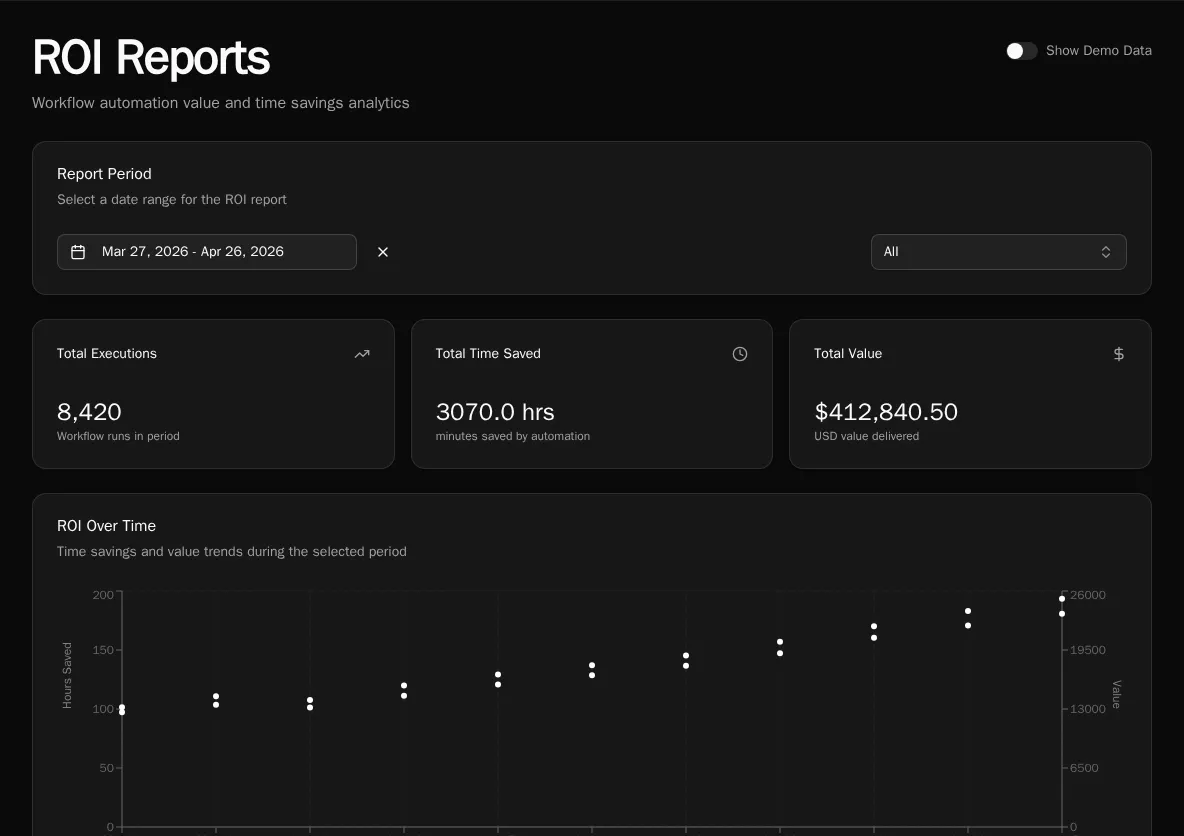
ROI is configured per workflow at authoring time:
@workflow( roi_minutes_saved=15, roi_dollar_value=25,)async def triage_ticket(): ...Each successful execution multiplies its workflow’s roi_minutes_saved and roi_dollar_value into the totals you see on the report. The page surfaces:
- Total time saved (hours)
- Total dollar value
- Trend chart — daily roll-up
- By workflow table — sortable by executions, time, or value
- By organization table — when scoped to all orgs
- Export — download the current view as CSV
Where agent costs land
Section titled “Where agent costs land”Autonomous agent runs generate AIUsage rows that roll into both reports:
- Usage Reports → the By Agent table groups by
agent_id, with per-model breakdown. - The Spend (7d) card on each agent’s detail page (
/agents/:id) reads fromAgentStats.total_cost_7d, which is the sameAIUsagedata summed over the trailing 7 days. Backfilling summaries on N runs (viaPOST /api/agent-runs/backfill-summaries) will move that card by roughlyN × (avg summarizer cost per run)— the API surfaces a cost estimate before you confirm.
Common questions
Section titled “Common questions”“Why is this workflow’s AI cost so high?” Open Usage Reports → set Source to Executions → expand the workflow row to see the per-model breakdown. If 90% of the cost is on Opus calls, the workflow is over-modeling — refactor it to route easy paths to a cheaper model.
“How much did we spend last month?” Set the date range to the previous month, leave Source on All, organization on All organizations. The Total AI cost summary card is your number.
“Is the platform paying for itself?” Compare Total AI cost in Usage Reports against Total dollar value in ROI Reports for the same date range. A 10× or better ratio is the typical signal that automation is earning its keep.
See also
Section titled “See also”- Diagnostics — CPU and memory at the worker level
- Audit Log — control-plane events
- Decorators reference —
roi_minutes_saved,roi_dollar_value,category