
Audit Log
Review authentication, user, role, organization, and integration events across the platform.
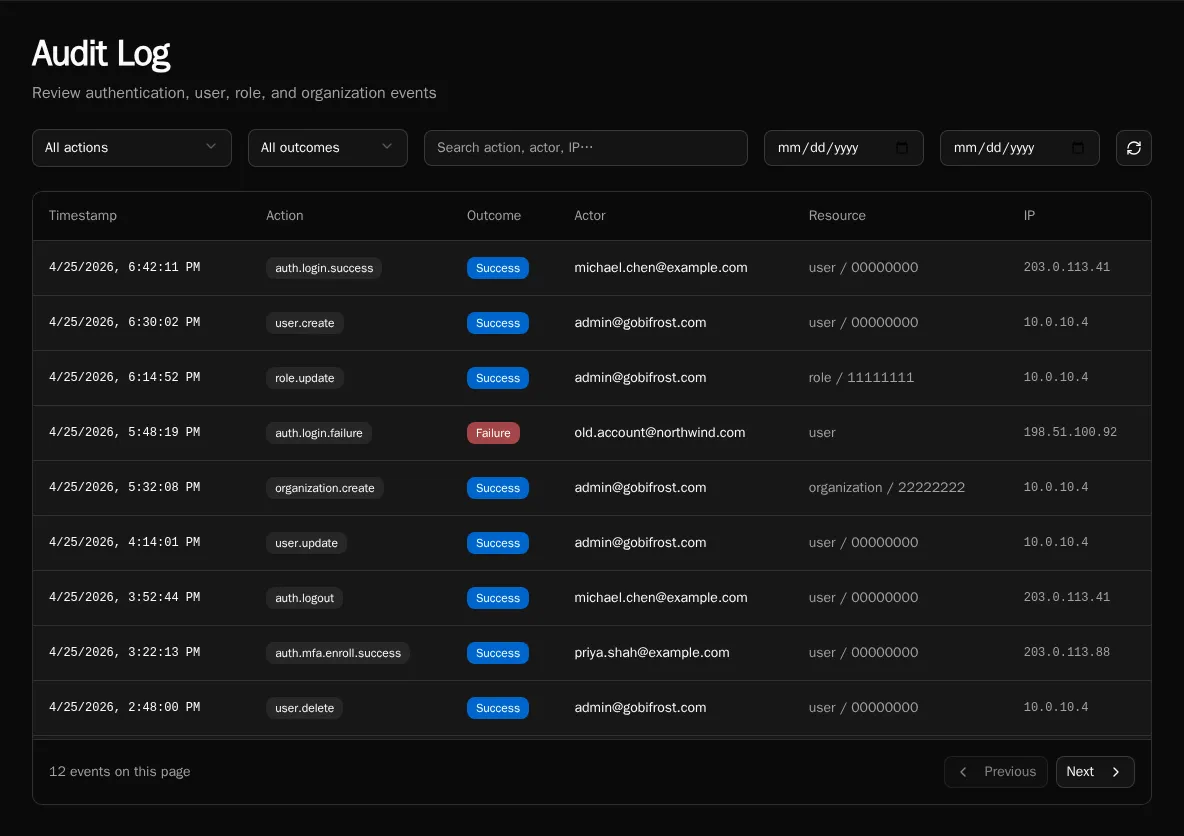
The Audit Log is the structured trail of who did what across the platform — who logged in, who created a role, who connected an integration. It replaced the older free-form system_logs stream and is the canonical record for compliance reviews and incident triage.
Open the page
Section titled “Open the page”Navigate to Settings → Audit Log, or go directly to /audit.
What’s tracked
Section titled “What’s tracked”Every entry is a dotted action name plus context. Actions group by the entity they touch:
| Group | Examples |
|---|---|
auth.* | auth.login.success, auth.login.failed, auth.logout, auth.passkey.add |
user.* | user.create, user.update, user.delete, user.role.assign |
role.* | role.create, role.update, role.delete, role.permission.update |
organization.* | organization.create, organization.update, organization.delete |
Each row carries:
- Timestamp (UTC, displayed in browser local time)
- Action (the dotted name)
- Outcome —
successorfailure - Actor — user email + display name. For non-HTTP events (SSO sync, scheduler, CLI), the source is shown in parens, e.g.
(sso_sync). - Resource — entity type + truncated ID (e.g.
user / 12345678) - IP address — for HTTP-originated events
- Details — event-specific JSON metadata
The list is append-only: audit rows are written in the same database transaction as the action they record, so you can’t have a successful state mutation without a corresponding audit row.
Filtering
Section titled “Filtering”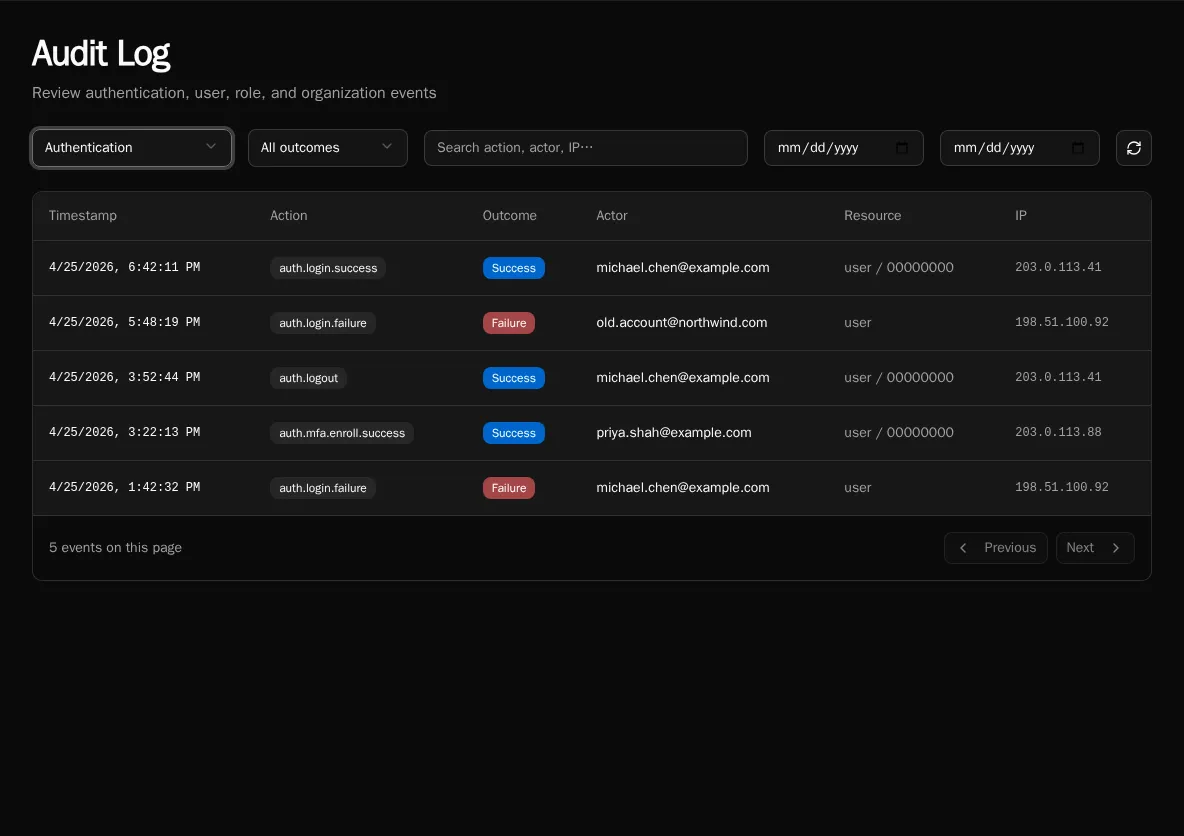
The filter bar above the table:
- Action group — dropdown: All, Authentication, Users, Roles, Organizations. Selecting a group filters server-side by the action prefix (
auth.,user., etc.). - Outcome — All, Success, or Failure. Use Failure to spot brute-force login attempts or permission errors that shouldn’t be happening.
- Search box — client-side filter over the current page. Matches action name, actor email/name, resource type, and IP. Use this to scope to a specific user or IP within a date range you’ve already loaded.
- Start / End date — server-side date-range filter (UTC).
Click the Refresh icon at the right to re-fetch with the current filters.
Pagination
Section titled “Pagination”The table loads 50 rows per page, newest first. Use Previous / Next at the bottom — the implementation uses opaque continuation tokens, so jumping to an arbitrary page isn’t supported (this is intentional for a large append-only log; date-range filtering is the right tool to narrow down).
Retention
Section titled “Retention”Audit rows are written to the audit_logs table and are not pruned by the platform. Retention is whatever your database backup / archival policy enforces — Bifrost itself does not auto-delete old rows, and there is no AUDIT_LOG_RETENTION env var.
If you have compliance retention requirements (e.g. “delete after 7 years”), schedule a database-level cleanup job against audit_logs matching your policy. The table is keyed on timestamp for fast range deletes.
Export
Section titled “Export”There is no built-in CSV/JSON export button on the page. To export audit data programmatically, hit the API directly:
curl -H "Authorization: Bearer $TOKEN" \ "$BIFROST_URL/api/audit?start_date=2026-01-01&end_date=2026-01-31&limit=1000"The response is paginated JSON (same shape the UI consumes); follow continuation_token for additional pages. Pipe through jq to flatten to CSV for spreadsheet ingestion.
Common queries
Section titled “Common queries”“Who created this user?”
Filter Action group: Users, search the user’s email, look for the user.create row. The actor column shows who did it.
“Are we under password-spray attack?” Filter Action group: Authentication, Outcome: Failure and scan the IP column. Repeated failures from the same IP across many actor emails is the signal.
“Who changed permissions on this role?”
Filter Action group: Roles, search the role’s name in the search box. Look for role.permission.update rows; the details JSON includes the diff.
See also
Section titled “See also”- Diagnostics — process pool / worker health
- Permissions — what the actions in the log are gating
- Configure SSO — SSO sync events appear with
source: sso_sync