
Filtering and finding runs
Search, filter, drill into delegations, and rerun or cancel agent runs
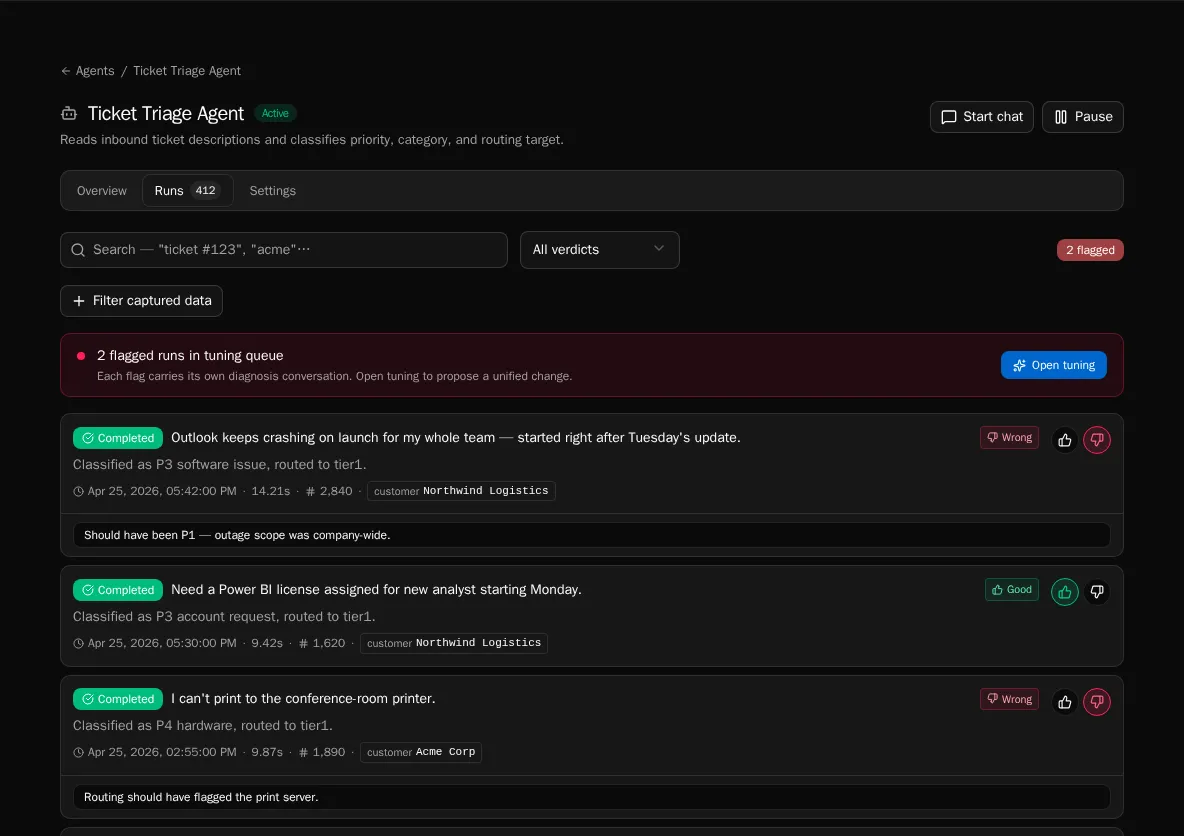
Every agent run is tracked with full step-level observability. The Runs tab on the agent detail page (and the global History → Agents view) lets you search, filter, and drill into individual runs.
Search runs by content
Section titled “Search runs by content”-
Open the agent’s Runs tab.
-
Type into the search box. Search runs full-text across the
askedsummary,didsummary, input payload, and final output. -
Combine search with verdict and metadata filters — they stack.
Filter by verdict
Section titled “Filter by verdict”-
Use the Verdict filter to show only thumbs-up, thumbs-down, or unreviewed runs.
-
The Tune workbench and Review flipbook both default to
verdict=down— this filter is the global view of the same set. -
Clear the filter to see every run regardless of review state.
Filter by metadata
Section titled “Filter by metadata”-
Add metadata filters to scope by
trigger_type(manual, webhook, schedule, workflow, rerun, delegation), status, model, or caller. -
Combine with verdict and search to drill into a specific scenario — e.g., “all webhook-triggered runs that were flagged in the last 7 days.”
-
Filters persist in the URL so you can share a filtered view.
Drill into a delegation chain
Section titled “Drill into a delegation chain”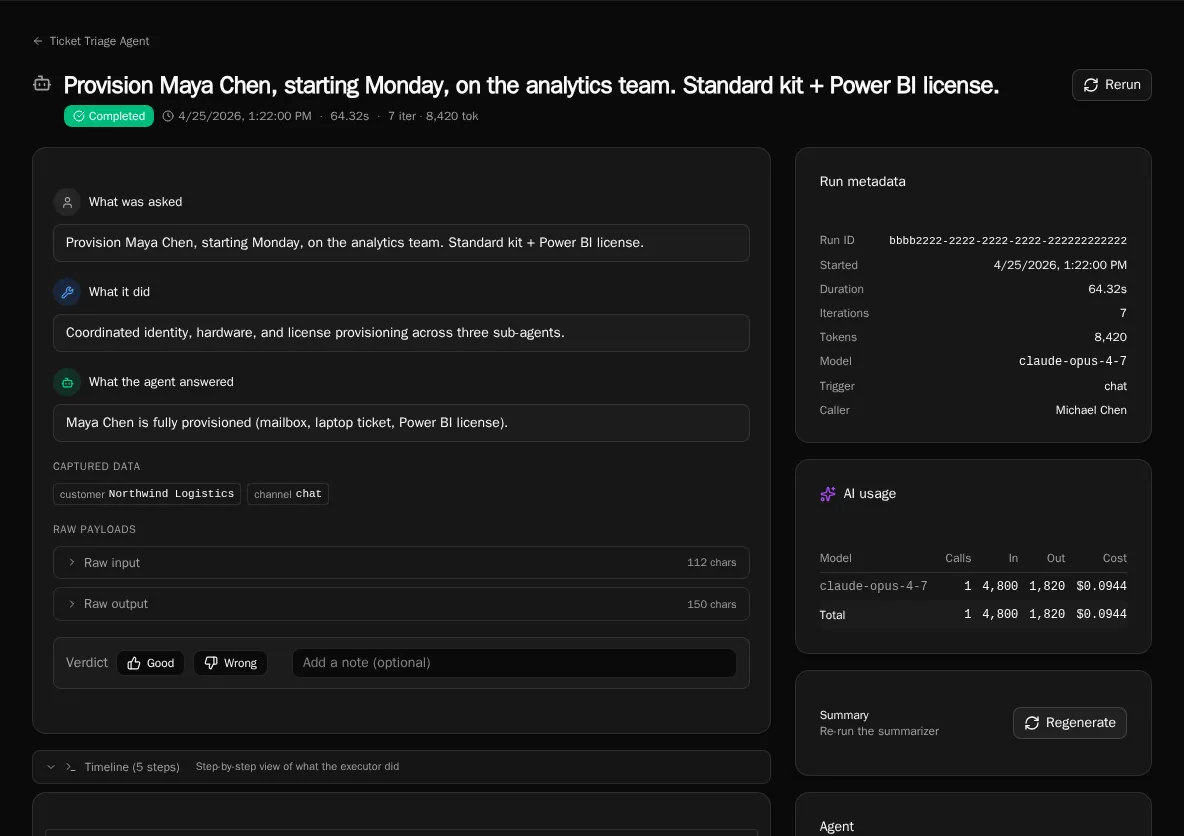
-
Click any run to open its detail page.
-
Expand Timeline to see the step-by-step LLM calls and tool executions.
-
Delegation steps render as expandable rows — click to inline the child run’s own steps without leaving the page. Child runs are filtered out of the top-level list, so the parent is the only entry point.
Rerun a finished run
Section titled “Rerun a finished run”-
On the run detail page, click Rerun. This works on completed, failed, and cancelled runs.
-
Bifrost creates a new run with the same input,
trigger_type="rerun", and links back to the original. You’re navigated to the new run. -
Use rerun to validate that a tuning change actually fixes a flagged scenario.
Cancel a running run
Section titled “Cancel a running run”-
While a run is in
runningstatus, the run detail page exposes a Cancel button. -
The run transitions
running→cancelling→cancelled. Cancellation is checked before each iteration, during tool execution, and via a background watcher. -
Cancelled runs can be rerun like any other terminal state.
Regenerate a run summary (admin)
Section titled “Regenerate a run summary (admin)”-
If a run’s
asked/didsummary failed to generate, the run detail sidebar shows a Regenerate card. Platform admins also see this card on healthy runs. -
Click Regenerate to re-queue the summarizer. The page polls and updates when the new summary lands.
-
Summaries cost a small amount per run — the Spend (7d) card on the fleet dashboard reflects regen cost.
Open the global runs view
Section titled “Open the global runs view”-
Click All runs in the agent fleet header (or open
/history?type=agents). -
The global view spans every agent and supports the same search/verdict/metadata filters plus an agent picker.
-
Use it for fleet-wide audits, ROI analysis, and finding runs across agents you don’t remember the name of.