
Connecting your personal MCP identity
Connect your own credential to an external MCP server so vendors see you, not the shared service account.
When your platform admin has registered an external MCP server and granted it to an agent or chat, you can optionally connect your personal identity to it. With a personal connection, vendors (M365, GitHub, etc.) see your user and apply your permissions, not the service account’s.
If you don’t connect, calls fall back to the shared service token (assuming the connection has Available in chat turned on). For some servers — client_credentials flows like an internal HaloPSA bridge — there is no per-user mode and this page doesn’t apply.
Connect from settings
Section titled “Connect from settings”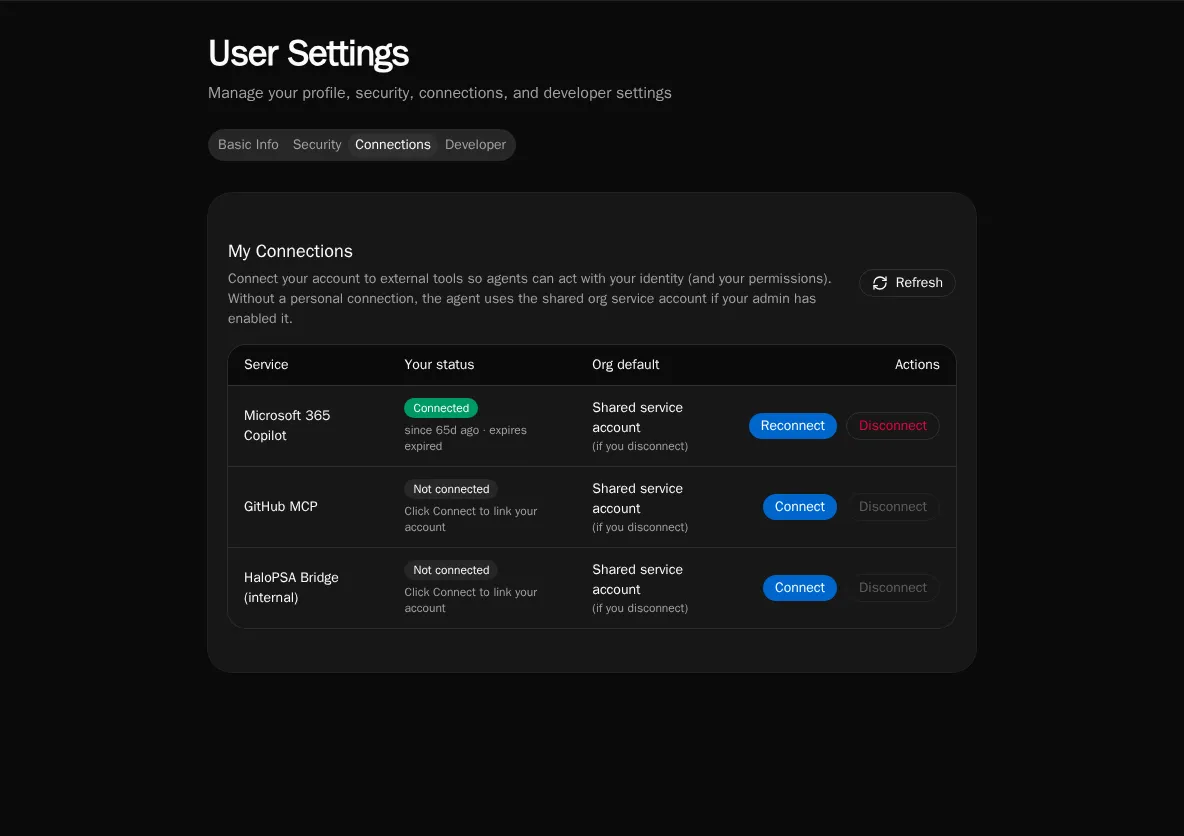
-
Open your User Settings → MCP Connections. The page lists every external MCP connection your org has access to.
-
Click Connect next to the server you want to authenticate as yourself.
-
Bifrost opens the server’s OAuth consent screen. Sign in with your account and approve the requested scopes.
-
Back in Bifrost, the row switches to Connected. Future tool calls in chat use your token.
Connect inline from chat
Section titled “Connect inline from chat”If an agent tries to call a tool that requires a personal credential and you don’t have one yet, chat shows an inline Connect card. Click it to complete the OAuth flow, then re-send your message. The agent retries with your token.
Disconnect
Section titled “Disconnect”The settings page has a Disconnect button on each connected row. Disconnecting deletes your stored token; future calls fall back to the service token (if enabled) or fail with a needs-reauth prompt.