
Connecting external MCP servers
Register a server template, configure OAuth, create an org connection, and grant tools to agents.
Bifrost can connect to remote MCP servers and surface their tools to your agents and chat. This page walks a platform admin through the full setup: register a server template, create a connection, configure visibility, and grant the connection to specific agents.
For the why and where this fits, see MCP core concept.
Prerequisites
Section titled “Prerequisites”- Platform admin role on your Bifrost instance.
- An MCP-compliant remote server reachable over HTTPS (streamable HTTP transport — SSE and stdio are not supported).
- The remote server’s OAuth metadata endpoints (
/.well-known/oauth-authorization-serverand/or/.well-known/oauth-protected-resource), or its authorize/token URLs if discovery isn’t available.
Step 1: Register a server template
Section titled “Step 1: Register a server template”A server template captures the URL, OAuth provider, and discovery snapshot. It’s platform-level — defined once, available to every organization.
-
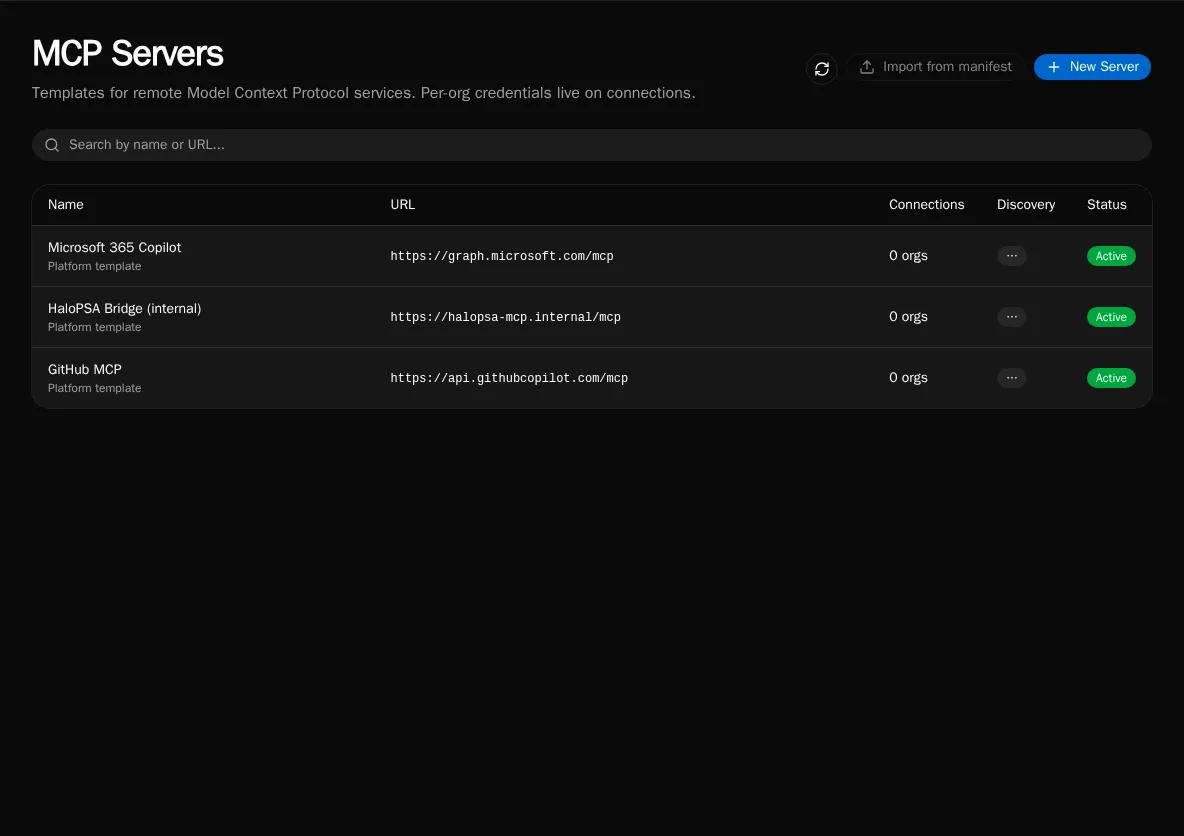
Go to MCP Servers in the sidebar (platform admins only). Click New Server.
-
Enter the server’s display name and base URL. Bifrost fetches the well-known discovery documents and pre-fills the OAuth metadata.
-
If discovery fails (the server doesn’t publish well-known endpoints), switch to Manual and enter the authorize URL, token URL, scopes, and token endpoint auth method by hand.
-
Pick the OAuth flow:
- Authorization Code (PKCE) — for servers that delegate to a user identity (M365 Graph, GitHub, anything with per-user consent).
- Client Credentials — for service-to-service flows where Bifrost authenticates as itself (an internal MCP gateway, a back-office bridge).
-
Save. The template is now visible to every org’s admins.
Step 2: Create an organization connection
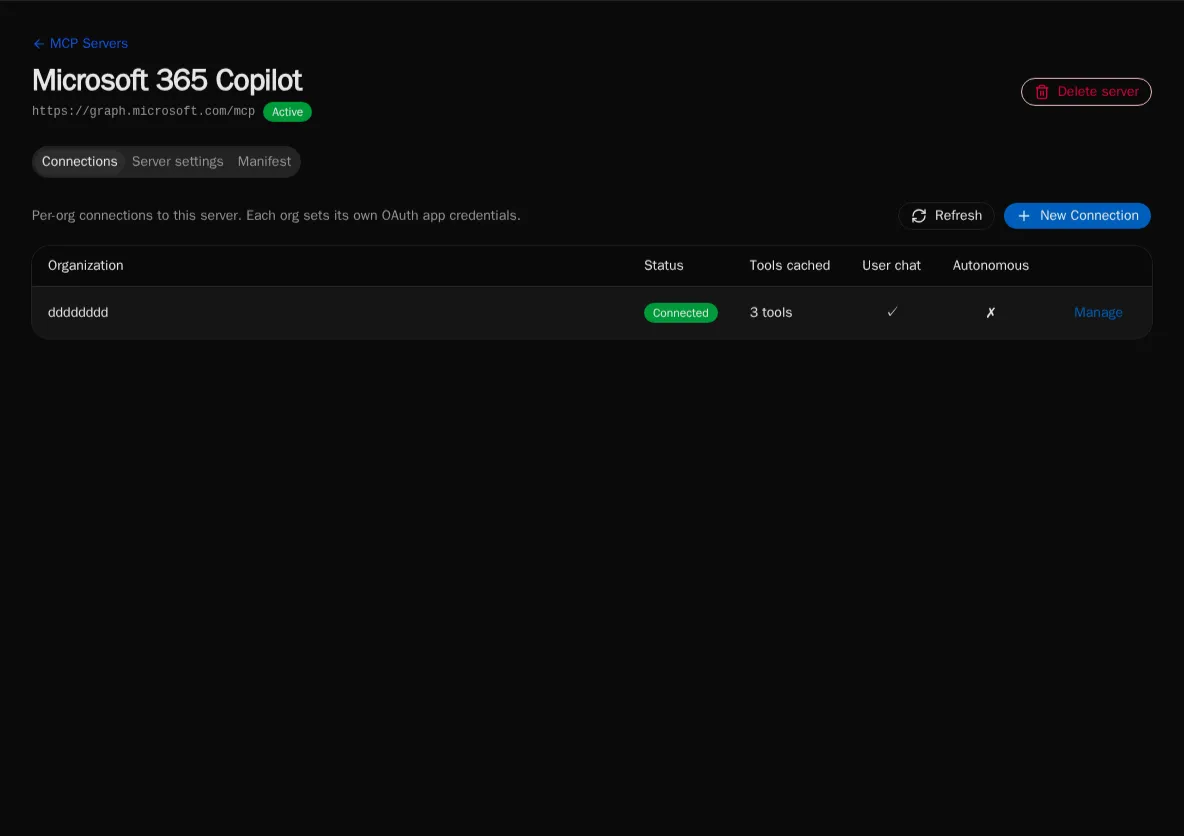
Section titled “Step 2: Create an organization connection”Each org admin then creates a connection binding their organization to the template.
-
From the server template page, click New Connection. Pick the organization.
-
Paste the OAuth
client_idandclient_secretissued by the remote server. The secret is encrypted at rest. -
Click Authorize. Bifrost opens the remote server’s consent screen, exchanges the code, and stores a service token.
-
Bifrost calls
tools/liston the remote server and populates the connection’s tool catalog. Each tool is admin-toggleable.
Step 3: Set visibility flags
Section titled “Step 3: Set visibility flags”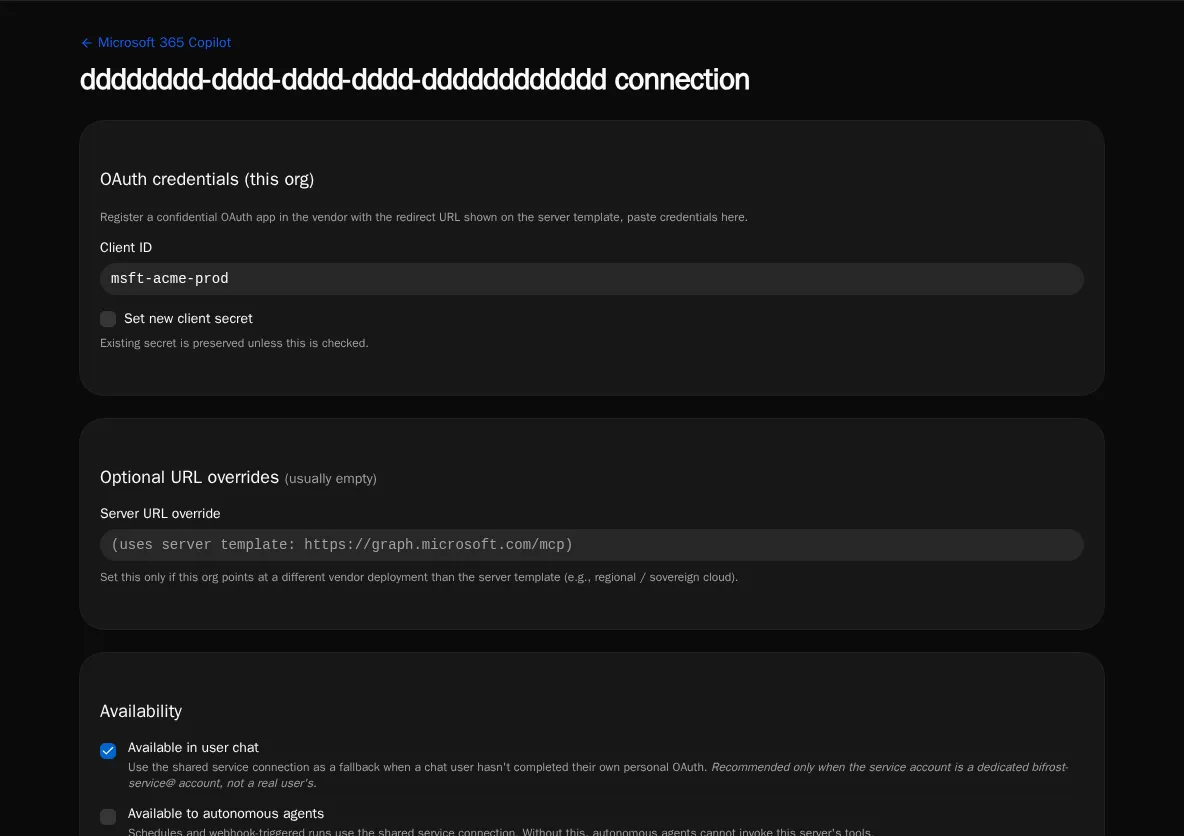
Each connection has two independent flags:
- Available in user chat — chat sessions can call these tools. If the calling user has no personal credential, falls back to the connection’s service token (the vendor sees the service identity).
- Available to autonomous agents — scheduled or event-triggered agent runs can call these tools using the service token.
Both flags off means the connection exists but no one can use it. This is useful when you’ve registered a connection but haven’t decided which surfaces should expose it yet.
Step 4: Grant the connection to agents
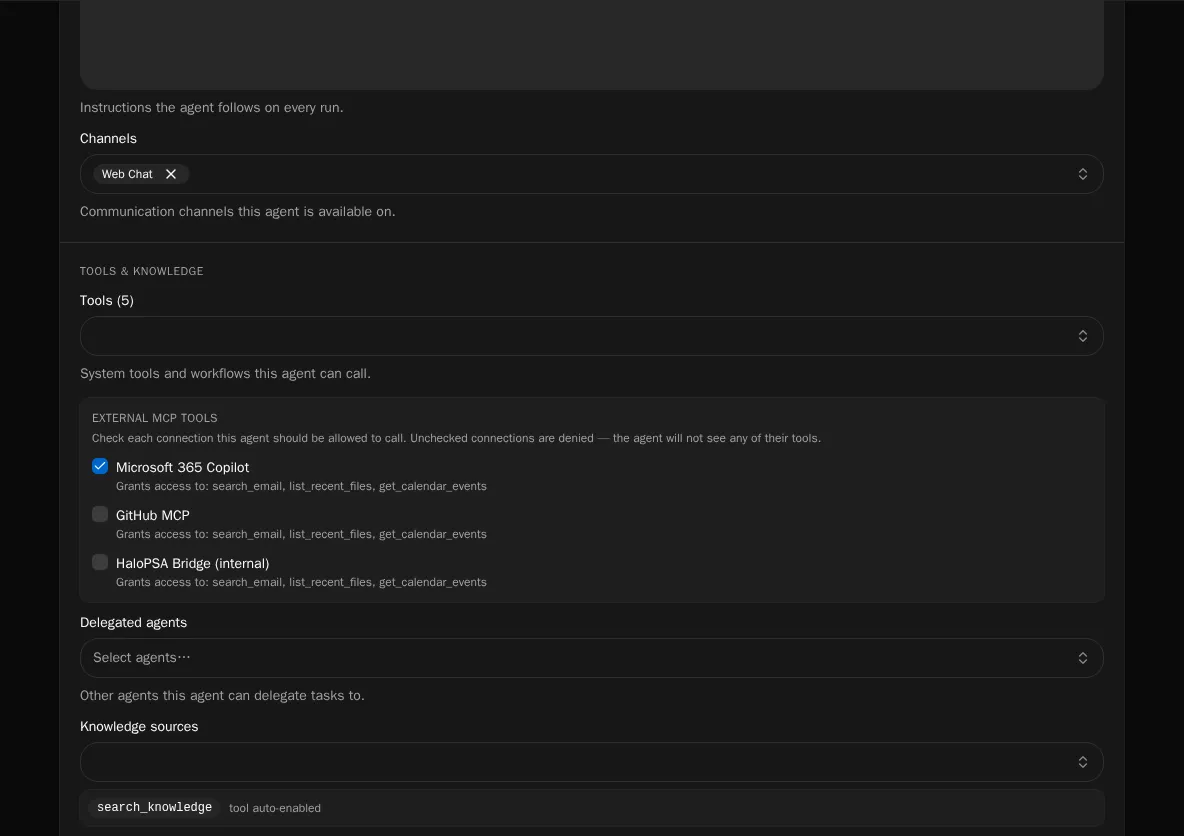
Section titled “Step 4: Grant the connection to agents”External MCP connections are default-deny per agent. A new connection is invisible to every agent in the org until you explicitly grant it.
-
Open the agent’s settings page → MCP Connections panel.
-
Tick the connections this agent is allowed to use. Untick to revoke.
-
Save. The agent’s tool list updates on its next run.
Step 5 (optional): Personal user credentials
Section titled “Step 5 (optional): Personal user credentials”If you want chat users to act as themselves (vendor sees the user, not the service account), users connect their personal credentials separately. See Connecting your personal MCP identity.
Tool result size cap
Section titled “Tool result size cap”Bifrost caps each MCP tool response at ~250KB (~60K tokens) before passing it to the LLM. Oversized responses are replaced with a structured truncation message that nudges the model toward narrower filter parameters on retry. This protects context-window budgets when an external server returns a large dataset.
Re-syncing the tool catalog
Section titled “Re-syncing the tool catalog”The connection page has a Refresh tools button that re-runs tools/list against the remote server. Manually-disabled tools stay disabled across re-syncs (they carry a disabled_reason flag) so you don’t have to re-curate after every refresh.
Removing a connection
Section titled “Removing a connection”Deleting a connection cascades to its tool catalog and to any user credentials scoped to it. Per-agent grants for the deleted connection are removed. Schedule the removal during a quiet window — autonomous agents that depended on its tools will start failing on their next run.