
Managing your agent fleet
Create, search, pause, and review every agent from the /agents dashboard
The Agents page is your fleet dashboard. It lists every agent (active and paused), shows fleet-wide metrics, surfaces runs that need review, and supports both grid and table views.
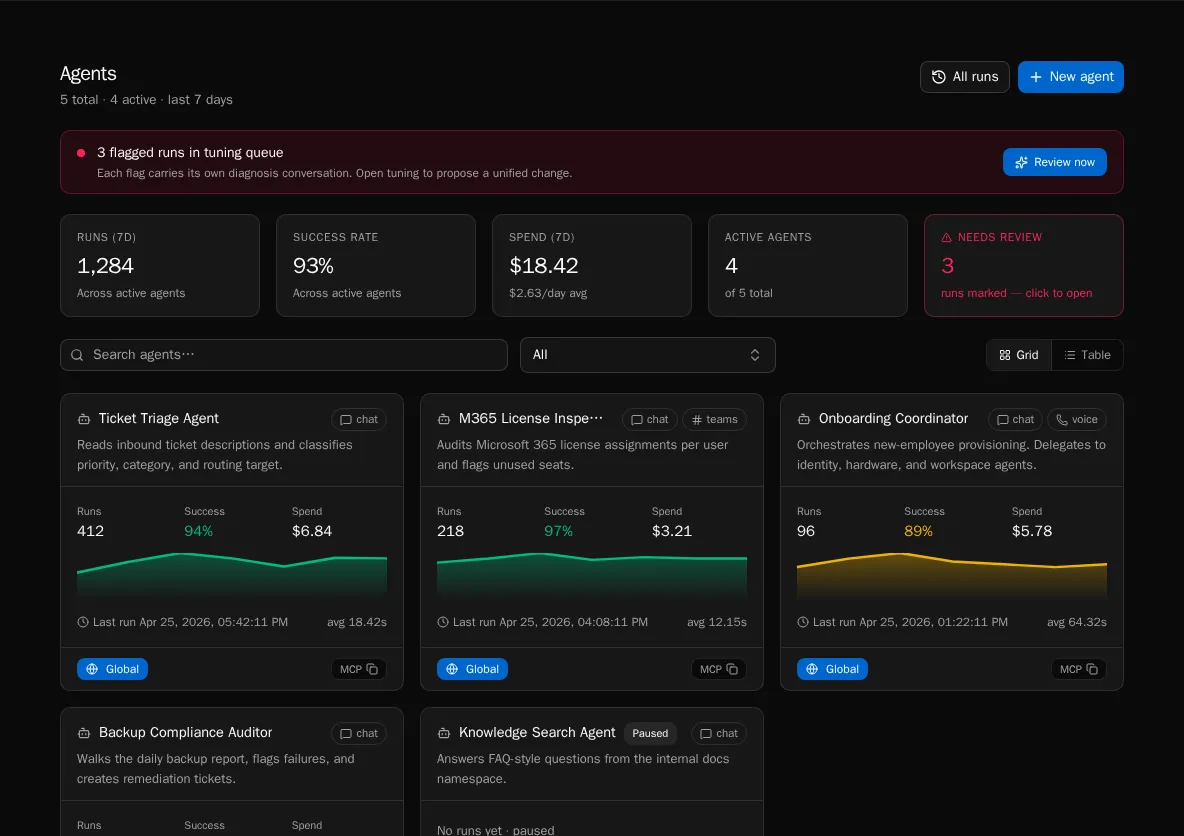
View the dashboard
Section titled “View the dashboard”-
Click Agents in the sidebar. The page loads with the grid view by default.
-
The top stat row summarizes fleet activity over the last seven days: Runs, Success rate, Spend, Active agents, and Needs review.
-
The Needs review card highlights flagged runs across the fleet. Click Review now in the orange banner to jump straight to the review queue.
Switch between grid and table view
Section titled “Switch between grid and table view”-
Use the Grid / Table toggle in the toolbar. Grid is best for browsing; table is best for sorting and side-by-side stats.
-
Each grid card shows a runs sparkline plus mini-stats for runs (7d), success rate, spend, last-run time, and average duration.
-
The table view exposes the same metrics in sortable columns and surfaces channel badges (chat, voice, teams, slack).
Search and filter
Section titled “Search and filter”-
Type into the search box to filter by name or description. The list updates instantly.
-
Platform admins see an organization filter next to the search box. Choose All organizations, Global, or a specific org to scope the list.
-
Clear the search box to restore the full list.
Pause and resume
Section titled “Pause and resume”-
Open an agent, then click Pause in the header. The agent stops accepting new runs immediately.
-
Paused agents stay in the fleet list with a Paused badge so you can find and reactivate them.
-
Click Activate in the header to resume.
Create a new agent
Section titled “Create a new agent”-
Click New agent in the top-right.
-
Fill in name, description, system prompt, channels, tools, and knowledge sources.
-
Save. The agent is created with
is_active=trueand shows up immediately in the fleet.
See Agents and Chat for field-level guidance and the SDK surface.
Backfill summaries (admin)
Section titled “Backfill summaries (admin)”-
Click Backfill summaries in the toolbar (platform admins only).
-
Confirm the cost estimate. Bifrost queues summary regeneration for any runs missing an
asked/didsummary. -
Backfilled summaries roll up into
total_cost_7d, so expect the Spend (7d) card to move proportionally.