
Managing Users & Invites
Invite, organize, and manage platform users and pending invitations
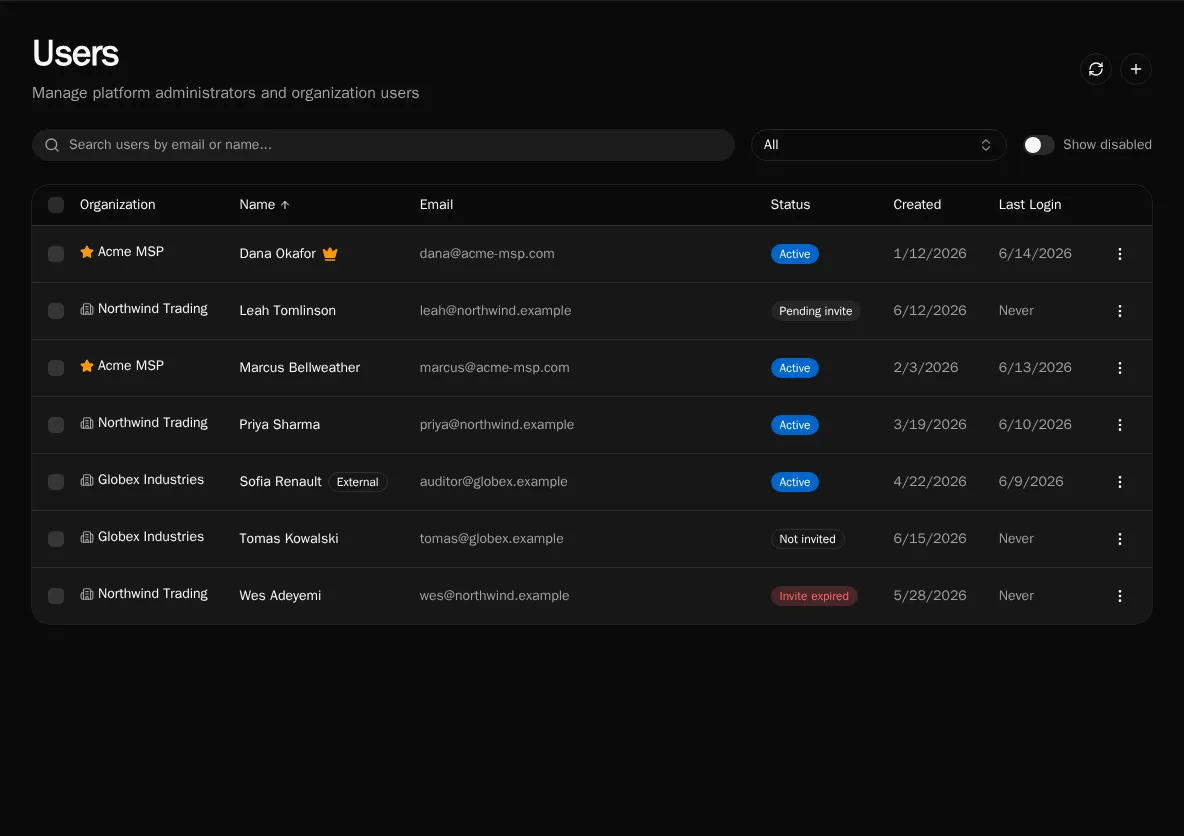
The Users page is where platform admins create accounts, send registration invites, assign people to organizations, and disable or delete users. Each row shows the user’s organization, invite status, and last login.
Invite Status
Section titled “Invite Status”Every user carries an invite status that tells you where they are in onboarding:
- Active — registered and able to sign in
- Pending — invited, link still valid, not yet accepted
- Expired — invited, but the registration link has passed its expiry
- Never invited — account exists with no invite issued yet
The status column is sortable, so you can group pending and expired invites together to chase them down.
Invite a User
Section titled “Invite a User”-
Click the + button in the top-right of the Users page.
-
Enter the email and name, then choose whether the user is a platform admin or a member of a specific organization.
-
Save. Bifrost creates the account and a registration link.
-
Copy the link from the dialog and send it, or — if an invite automation is configured (see below) — let Bifrost email it.
Row Actions
Section titled “Row Actions”Open the action menu (⋯) on any row to:
- Resend invite — fire the invite automation again for a pending or expired user
- Regenerate link — create a new registration URL and show it for copying
- Copy link — grab the current registration URL
- Revoke invite — invalidate the pending link
- Disable / Enable — block or restore platform access without deleting data
- Delete — permanently remove the user and associated data
Disabling is reversible; deleting is not. Use Show disabled above the table to surface accounts you’ve turned off.
Bulk Actions
Section titled “Bulk Actions”Select multiple users with the row checkboxes (you can’t select yourself). A bulk action bar appears with:
- Move to organization — reassign selected users to another org
- Replace roles — overwrite role assignments across the selection
- Disable / Enable — toggle access for everyone selected
If some users in a bulk operation fail, Bifrost reports the partial result so you can see exactly which rows succeeded.
Automating Invite Emails
Section titled “Automating Invite Emails”The invite Resend and Send email paths only deliver mail when a workflow or agent is subscribed to the user.invited event. Without a subscription, Bifrost still generates the link — you just copy and send it manually.
To automate delivery, create a topic event source for user.invited and subscribe a workflow that sends the registration email. See Subscribe a Workflow or Agent.
External Users
Section titled “External Users”Users flagged External (portal or guest accounts) see only what the Everyone access tier or an explicit role grant allows — never global entities and never the standard “authenticated” entitlement. The External badge appears next to their name. For the full access model, see Scopes.