
GitHub Sync
Connect your Bifrost workspace to a GitHub repository for version control, so workflow and app source code can be committed, pushed, and pulled from the Code Editor.
The GitHub settings tab connects your Bifrost workspace to a GitHub repository. Once connected, the source code for your workflows and apps lives in version control, and you commit, push, and pull changes from the Source Control panel in the Code Editor.
Open the settings tab
Section titled “Open the settings tab”Navigate to Settings → GitHub, or go directly to /settings/github.
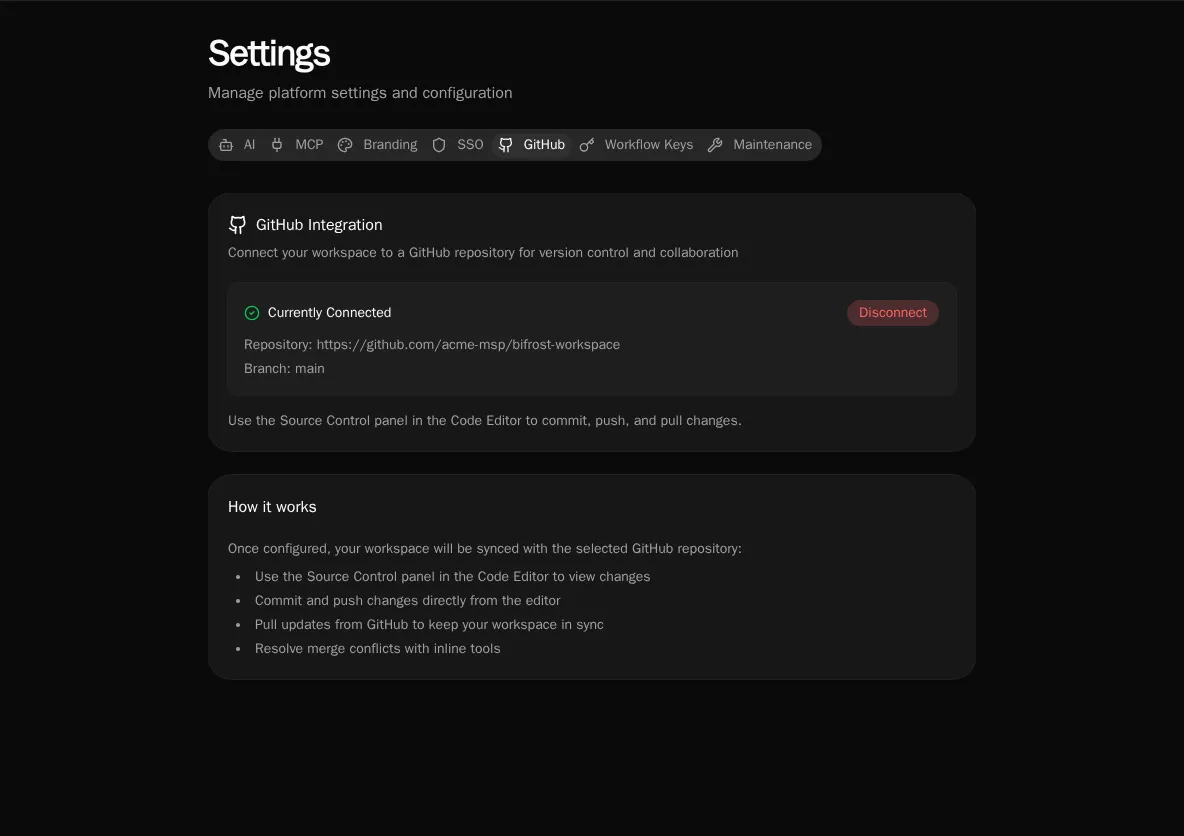
When a workspace is already connected, the tab shows the linked repository and branch. Use the Source Control panel in the Code Editor to commit and push from here on — you don’t reconfigure for day-to-day work.
Connect a repository
Section titled “Connect a repository”-
Create a token. On github.com/settings/tokens, create a personal access token with the
reposcope. -
Validate the token. Paste it into GitHub Personal Access Token and click Validate. Bifrost lists the repositories the token can reach. If the token matches a known repository, that repo is auto-detected.
-
Pick a repository and branch. Select an existing repository, or click Create New to create one in your account. Then choose the branch to sync with (defaults to
main). -
Configure. Click Configure GitHub. Setup runs as a background job — watch for a notification when it completes.
Day-to-day sync
Section titled “Day-to-day sync”Once connected, all git operations happen in the Code Editor’s Source Control panel:
- Commit and push local changes to the remote branch.
- Pull updates from GitHub to keep the workspace in sync.
- Resolve merge conflicts with the inline conflict tools.
Disconnect
Section titled “Disconnect”To remove the integration, click Disconnect on the connected card and confirm. This deletes the stored token and repository configuration; the workspace files stay in place. You’ll need to validate a token again to reconnect.