
Workspace Maintenance
Index platform docs, rebuild app dependency graphs, and reimport the workspace from S3 using the Settings → Maintenance tools.
The Maintenance tab is the operator toolbox for keeping a workspace’s derived state in sync with its source of truth. It rebuilds things Bifrost normally maintains automatically — the documentation knowledge index, the app dependency graph, and the entity records imported from your repository — for the times when something drifts.
Open the tab
Section titled “Open the tab”Navigate to Settings → Maintenance, or go directly to /settings/maintenance.
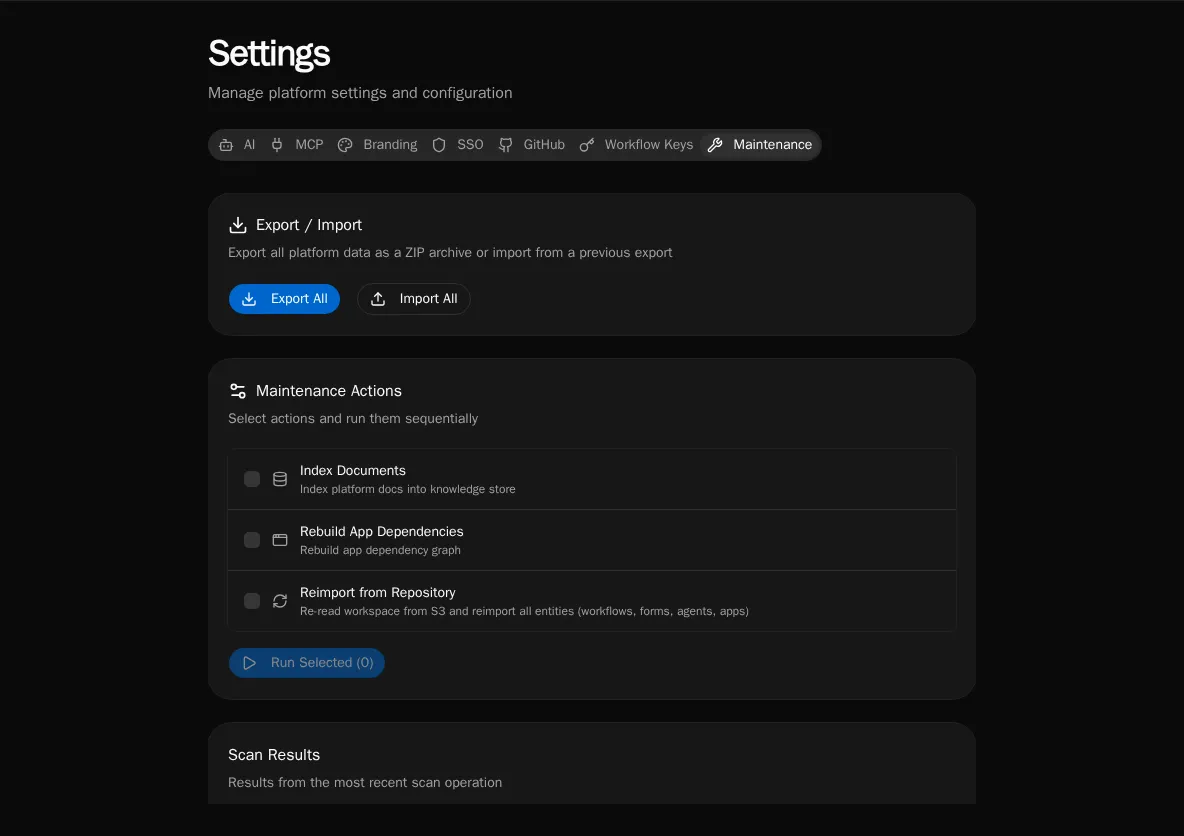
The tab has three sections: Export / Import at the top, the Maintenance Actions checklist, and a Scan Results panel that fills in after a run.
Run a maintenance action
Section titled “Run a maintenance action”The actions checklist lets you select one or more tasks and run them in sequence. Tick the boxes, then click Run Selected — Bifrost runs them in a fixed order (index docs → rebuild dependencies → reimport) and shows a spinner per row, then a green check when each finishes.
Index Documents
Section titled “Index Documents”Indexes the platform documentation into the knowledge store so the chat assistant and agents can retrieve it. The result panel reports how many files were indexed (new or changed), left unchanged, deleted, and the total duration. Indexing is incremental — unchanged files are skipped, so re-running is cheap. If nothing changed since the last run, the action reports skipped.
Rebuild App Dependencies
Section titled “Rebuild App Dependencies”Re-scans every app’s source for the workflows it calls and rebuilds the dependency graph that powers install-time validation and the “broken reference” warnings. The result panel summarizes apps scanned, files scanned, and dependencies rebuilt.
If an app references a workflow that no longer exists, it shows up under Missing workflow references, grouped by app, with the exact file and the missing workflow:<id> reference:
- Each broken reference means an app calls a workflow path that isn’t present in the workspace — usually a renamed or deleted workflow.
- Fix it by restoring the workflow, or by updating the app’s call to the new path, then re-run the scan to confirm it’s clean.
A scan that finds issues also raises a workspace notification so the drift is visible outside this page.
Reimport from Repository
Section titled “Reimport from Repository”Re-reads the entire workspace from S3 and reimports all entities — workflows, forms, agents, and apps. Use this after a manual repository edit, a restore, or when the in-database state has drifted from the committed source. The reimport runs as a background job; the page polls it and reports completion (or failure) via a toast. Large workspaces can take a minute or two.
Export and import everything
Section titled “Export and import everything”The Export / Import card at the top is a workspace-wide escape hatch:
- Export All downloads a ZIP archive of all platform data.
- Import All opens a dialog to restore from a previous export.
This is the bulk counterpart to the per-entity export/import flows. For the portable, scrubbed solution format (and encrypted backups), use the solution export/backup flow instead.
When to reach for each tool
Section titled “When to reach for each tool”| Symptom | Action |
|---|---|
| Chat / agents can’t find docs they should know | Index Documents |
| App shows a broken-workflow warning, or you renamed a workflow | Rebuild App Dependencies |
| DB entities don’t match the committed repository | Reimport from Repository |
| Migrating a whole workspace or taking a full snapshot | Export All / Import All |
See also
Section titled “See also”- Diagnostics & Process Pools — worker health and queue depth
- Knowledge Bases — what the documentation index feeds
- Export & Backup a Solution — portable, scrubbed exports